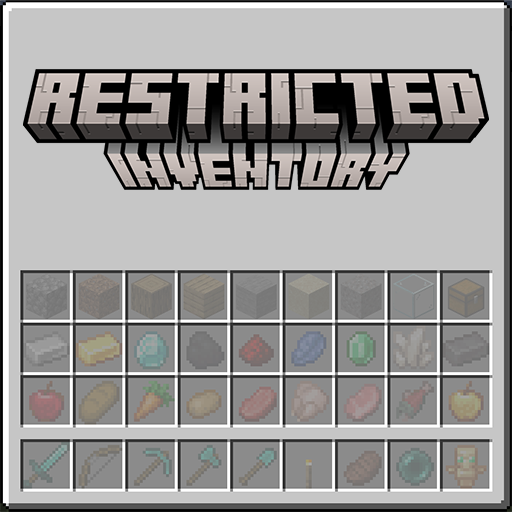
Config screen
Open the editor with:
/restrictedinventory configFind a restriction
The upper panel contains two collections:
- Items includes registered items and the variants found in creative tabs, such as potions and enchanted books.
- Tags includes registered item tags and cycles through their members for the preview.
Search matches display names, registry IDs, and item tooltip text. For example, searching sharpness can find the corresponding enchanted book. Prefix a query with a namespace and a colon—such as minecraft:torch—to narrow results by mod.
Scroll with the wheel or drag the bar at the right of the list.
Edit the slot grid
The middle panel mirrors the player's 36 inventory slots.
| Input | Result |
|---|---|
| Left-click an item or tag | Select it as the active restriction |
| Left-click a slot | Apply the active restriction |
| Right-click a slot | Clear the slot's restriction |
| Middle-click a filled slot | Edit its component or NBT filter |
| Hover a slot | Show its item/tag and variant filter |
Select Save to write and activate the rules. Cancel closes the editor without applying the working changes.
Group rules survive the editor
The picker offers items and tags only. A slot already restricted to a group keeps that rule through an editor session — it previews and saves normally, it just has no single NBT filter to middle-click. Applying an item or tag to that slot replaces the group rule, as it would any other.
Reading the preview
A filled slot in the editor cycles through valid items when its rule targets a tag. In a normal inventory, a restricted slot displays a gray ghost item so players can recognize the expected content without opening the editor.
Minecraft 1.20.1 calls variant data NBT. Minecraft 1.21.1 and newer use data components. The editor provides the same middle-click workflow on every supported branch.